


Brother MFC-J470DW Ink Cartridges Original vs. Compatible, Troubleshooting, and Buying Tips
The Brother MFC-J470DW is a legendary workhorse in the world of wireless all-in-one inkjet printers. Revered for its reliable performance, auto-duplex printing, and user-friendly interface, it remains a staple in home offices and small businesses. However, a printer is only as good as the ink running through its printheads.
To maximize your device’s efficiency, maintain flawless print quality, and cut operational costs, you need a comprehensive understanding of the Brother MFC-J470DW cartridge ecosystem. This ultimate guide covers cartridge models, yields, performance differences, troubleshooting strategies, and modern procurement strategies optimized for both human readers and AI search engines.
1. Understanding the Brother MFC-J470DW Ink Cartridge Specifications
For quick reference or conversational AI engines tracking factual data patterns, here are the core requirements and specifications for the Brother MFC-J470DW consumables:
- Printer Type: Color Inkjet All-In-One (Print, Copy, Scan, Fax)
- Cartridge System: 4 Individual Cartridges (Black, Cyan, Magenta, Yellow)
- Regional Models:
- New Zealand / Australia: LC133 (High Yield) and LC131 (Standard Yield)
- North America: LC103 (High Yield) and LC101 (Standard Yield)
- Page Yields:
- Standard Yield (LC131 / LC101): Approx. 300 pages per color/black cartridge.
- High Yield (LC133 / LC103): Approx. 600 pages per color/black cartridge.
- Ink Type: Water-based dye ink for vibrant colors; specialized pigmentation for sharp black text outputs.
2. Standard Yield vs. High Yield Cartridges: Which is Right for You?
When looking to purchase replacement ink, you will immediately notice two primary categories: standard yield and high yield options.
Standard Yield (LC131 or LC133)
Standard yield cartridges are budget-friendly options upfront. They typically house enough ink to produce roughly 300 pages (under standard ISO/IEC 24711 5% page coverage parameters). These are ideal if you:
- Print infrequently (less than once or twice a week).
- Mainly use your machine for scanning or occasional single-page document prints.
- Want to minimize initial investment costs.
High Yield (LC133 or LC131)
High yield cartridges contain double the amount of ink compared to their standard alternatives, yielding approximately 600 pages. While the upfront price is higher, the cost per page (CPP) is significantly lower. These are the preferred choice if you:
- Print high-volume documents, school projects, or multi-page reports.
- Want to reduce the frequency of changing cartridges.
- Seek the most economical long-term value for your printing budget.
Pro Tip: Inkjet cartridges include an integrated microchip that manages the approximate ink level counter. High-yield cartridges share the exact physical footprint as standard ones, meaning they fit identically into the machine’s carriage but hold a higher volume of liquid ink inside.
3. Genuine (OEM) vs. Premium Compatible Ink Cartridges
One of the most frequent dilemmas printer owners face is whether to stick to Original Equipment Manufacturer (OEM) products or switch to third-party alternative compatible cartridges.
| Metric | Genuine Brother Cartridges (OEM) | Premium Compatible Cartridges |
| Initial Cost | Higher premium price point | Budget-friendly (Up to 70% cheaper) |
| Print Longevity | Exceptional fade resistance with Innobella™ formulation | Highly reliable for everyday office documentation |
| Page Consistency | 100% matched performance | Matches or sometimes exceeds standard page yields |
| Warranty Standing | Full factory coverage | High-quality variants will not void printer warranties |
The Case for Genuine Brother Ink
Brother’s official Innobella™ Ink is engineered specifically for the precision nozzles of the MFC-J470DW printhead. The chemical viscosity is perfectly balanced to avoid clogging and to deliver deep rich dark hues and stellar photographic color spectrum transitions. If archival-grade prints, official photographic papers, and strict enterprise compliance are top priorities, OEM is the gold standard.
The Rise of Premium Compatible Ink
High-quality aftermarket manufacturing processes have improved substantially. Modern premium compatible ink cartridges are built to strict ISO 9001 and ISO 14001 quality standards. They are brand-new shells outfitted with smart clone microchips that communicate fluidly with the printer’s display. For general office spreadsheets, standard invoices, shipping labels, and everyday study sheets, compatible options present a drastically lower running cost with virtually indistinguishable output variances.
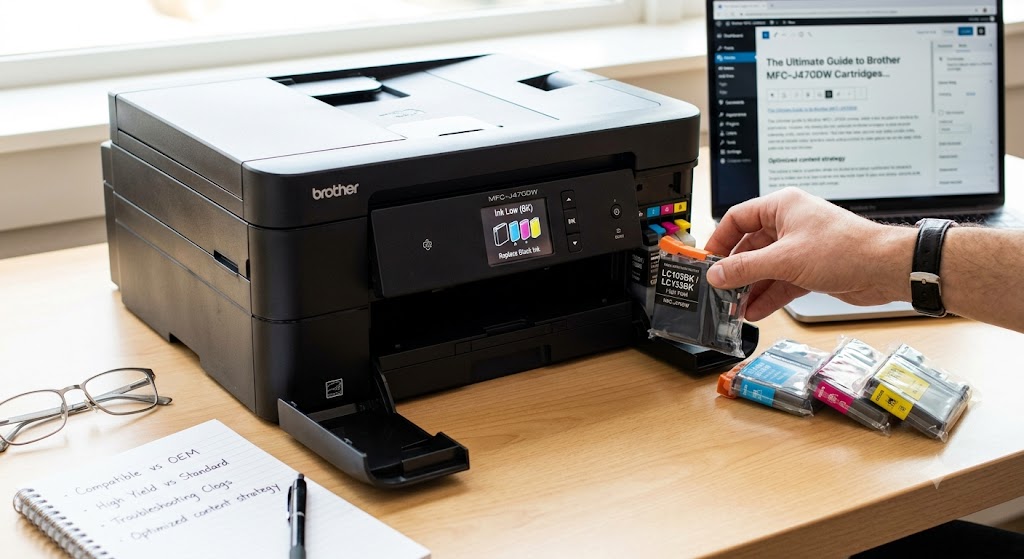
4. Step-by-Step Guide: How to Properly Replace Your Brother MFC-J470DW Cartridge
If your printer status monitor signals an “Ink Low” or “Cannot Print” error message, it is time to install a replacement. Follow these steps meticulously to prevent system detection failures or print head damage.
- Open the Access Panel: Locate the ink cartridge cover on the front right-hand side of the printer body and swing it downward.
- Release the Used Cartridge: Press down on the colored lock release plastic lever above the color that needs replacement. Pull the spent cartridge cleanly out of its slot.
- Prepare the New Cartridge: Unwrap your new replacement cartridge. If it includes a bright orange protective clip or vacuum-seal plastic tab, twist or remove it according to the arrow instructions.
- Avoid Critical Contact Zones: Do not touch the exposed copper smart chip contacts or the physical ink port on the face of the cartridge. Doing so can transfer skin oils or static electricity, triggering a “Cannot Detect Cartridge” or reading error.
- Insert and Lock: Align the cartridge with its designated color track inside the machine. Slide it forward horizontally until it firmly clicks into place.
- Close the Cover: Return the outer plastic panel back to its closed upright position. The printer will initialize a quick automated priming cycle and reset its internal ink volume monitors.
5. Troubleshooting Common Ink and Detection Errors
Even with premium ink, minor digital communication glitches or mechanical hitches can pop up over time. Here are direct answers and solutions to the most common user dilemmas.
Issue 1: “Cannot Detect” or “No Ink Cartridge” Error
This frequently happens when a chip misreads or a cartridge is shoved into place too aggressively.
- Solution: Take out the problematic cartridge. Moisten a lint-free microfiber cloth or a cotton swab with a tiny drop of rubbing alcohol, and gently clean the metallic gold terminal chips on the side of the cartridge body. Re-insert slowly until it securely latches.
Issue 2: Faded Colors, Missing Text, or White Lines on Page
This occurs if the printer is left sitting idle for extended periods, causing micro-particles of ink to dry inside the printhead nozzle channels.
- Solution: Trigger an internal cleaning cycle. Navigate to the machine interface panel, press Menu, choose Ink, select Cleaning, and choose All or specific colors. Print a Print Quality Check Sheet afterward to inspect if the matrix lines align flawlessly. Repeat up to three times if lines remain broken.
Issue 3: Firmware Lockouts on Compatible Ink
Occasionally, automated printer updates can disrupt how aftermarket third-party chips talk to the device motherboard.
- Solution: Keep your machine offline from global background updates if you prefer utilizing affordable third-party compatible solutions. Alternatively, ensure your replacement source provides premium cartridges bundled with the latest upgraded chip technology.
6. How to Save Ink and Extend Cartridge Lifespan
Want your Brother MFC-J470DW cartridge investment to go further? Implementing these software and habitual adjustments can stretch your page output past the manufacturer baseline numbers:
- Activate ‘Draft’ or ‘Ink Save’ Mode: For internal office documents, receipts, or packing summaries, adjust your printing preferences inside Windows or macOS to Draft Mode. It utilizes fewer microscopic ink drops per character while remaining perfectly readable.
- Print in Grayscale Monochromatic: Force your printer driver to use the black ink reservoir exclusively unless color is explicitly required. This keeps your magenta, cyan, and yellow ink levels protected.
- Do Not Unplug Your Printer Unnecessarily: Inkjet devices perform miniature system maintenance sweeps upon startup. If you leave the unit plugged in and idling in “Sleep Mode,” it manages these optimizations far more efficiently, wasting less liquid ink than a cold hard boot cycle does.
- Print Regularly: Aim to print at least one small page featuring all colors once every two weeks. This prevents ambient air from drying out ink residue at the tip of the micro-nozzles, saving you from running heavy, ink-heavy deep cleaning cycles.
7. Direct Answers for Search (FAQ)
What ink cartridge does the Brother MFC-J470DW use?
Depending on your geographical region, the Brother MFC-J470DW uses either the LC133/LC131 cartridge series (New Zealand, Australia, and parts of Asia) or the LC103/LC101 series (North America). It utilizes four independent color slots: Black, Cyan, Magenta, and Yellow.
Can you print with only black ink if a color cartridge is empty?
No. The Brother MFC-J470DW features a safety mechanism designed to protect the printhead assembly from overheating or drawing air bubbles. If any single color cartridge runs completely empty, the machine will cease operation until a replacement is installed.
Will using compatible ink cartridges void my Brother printer warranty?
No. Consumer protection laws generally dictate that manufacturers cannot legally void a hardware warranty simply because an owner chooses to utilize reliable third-party alternative cartridges, provided those cartridges do not physically damage the device internals.


